 Anthony
How to Change Your Business Hours on Google, Holidays Too
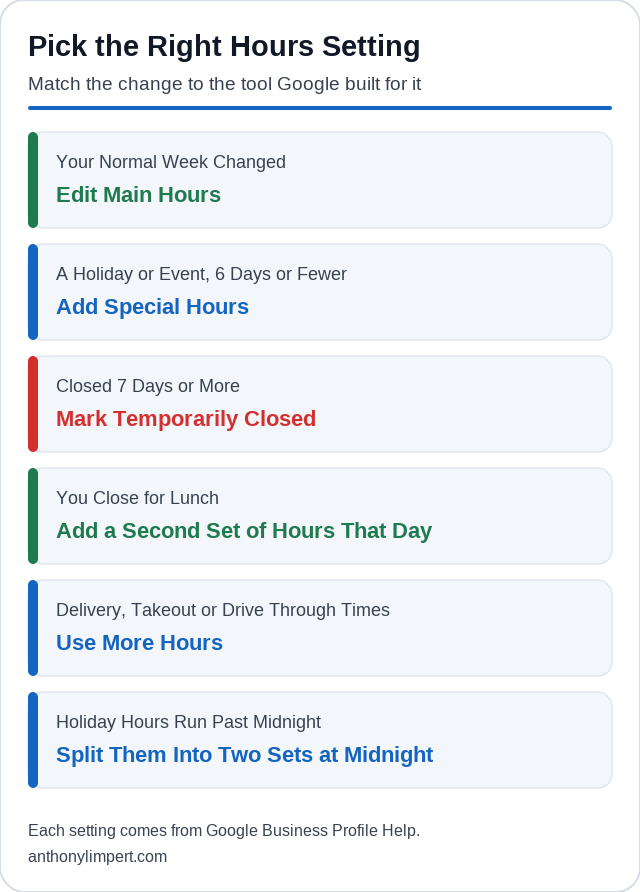
You just cut Saturdays, or you're closing early on Christmas Eve, and Google still shows the old times. A customer will trust that listing and drive over. To change your business hours on Google, open your Business Profile, choose Edit profile, then Hours, and save the new times. For a holiday, leave your normal week alone and add special hours for that one date instead.
What You'll Learn
Know This Going In
- Main hours are your normal week. Special hours cover a holiday or event of 6 days or fewer.
- Special hours replace that whole day, so re-enter any regular hours you still keep.
- A closure of 7 days or more calls for "Temporarily closed," not special hours.
- Google says most edits are reviewed in about 10 minutes, but some take up to 30 days.
- If a customer suggests new hours, you get 4 days to accept or reject the change.
- Google may publish that suggestion anyway if your own website backs it up.
How Do You Change Your Business Hours on Google?
Sign in with the Google account that manages the profile first. A different account sees the public listing, not the edit buttons. Then follow Google's own steps from its help page on editing business hours.
- Go to business.google.com, or search your business name on Google while signed in.
- Select Edit profile, then Hours.
- Next to Hours, select the pencil icon and pick "Open with main hours."
- Check the box for every day you're open.
- Set the opening and closing times from the dropdowns.
- Select Save.
For a 24 hour business, click "Opens at" on each open day and choose 24 hours. In some regions and languages, Google also offers a "Generate hours" box. You type your week in plain words and Google fills in the days. Check every line it fills before you save.
How Do I Change My Hours From the Google Maps App?
Open the Google Maps app on your phone. At the bottom right, tap Business, then tap Edit profile (Google Business Profile Help). Find Hours, change the times, and tap Save.
The phone and the computer edit the same profile. Use whichever one is in your hand when the schedule changes. The point is to fix it the same day, not when you finally sit down at a desk.
Add a Lunch Break or Split Shift
Google handles a break as two sets of hours on the same day. Say you're open 9 AM to 2 PM, then 5 PM to 10 PM. Check the day, set 9:00 AM to 2:00 PM, select "Add hours," then set 5:00 PM to 10:00 PM and save (Google Business Profile Help).
Don't skip this if your door is really locked at noon. A shop that shows open through lunch earns the same angry walk up as one with the wrong closing time.
Set Holiday Hours With Special Hours
Special hours are how you change one date without touching your normal week. Google says they cover a temporary change or a closure of up to 6 days in a row (Google Business Profile Help, special hours).
- Go to your Business Profile and select Edit profile, then Hours.
- Next to Special hours, select Edit.
- Pick a date Google suggests and select Review, or select "Add a date" for your own.
- For a day you're open, uncheck Closed and enter the times.
- For a full day off, leave Closed checked.
- Select Save.
Three rules trip people up. First, special hours replace that day's regular hours, so a shorter Christmas Eve needs the times you are open, not only the change. Second, one set of special hours can't run past 24 hours. A holiday shift that ends after midnight gets split into two sets, one ending at midnight and one starting at midnight. Third, special hours only show when the profile is set to "Open with main hours."
Google also asks you to confirm official holidays even when your hours don't change. That confirmation tells shoppers your listed times are real for that day.
Holiday Dates Google Is Watching This Season
Google keeps a list of holidays where hours often change. On those dates, its help page says a warning may appear on your profile telling people your hours "might differ" (About holidays on Google). Setting special hours ahead of time is how you get ahead of that.
| Date | Holiday on Google's US list | Where |
|---|---|---|
| December 24, 2026 | Christmas Eve | Nationwide |
| December 25, 2026 | Christmas | Nationwide |
| December 26, 2026 | Boxing Day | NC, SC and TX |
| December 28, 2026 | Boxing Day (observed) | NC and SC |
| December 31, 2026 | New Year's Eve | Nationwide |
| January 1, 2027 | New Year's Day | Nationwide |
Black Friday, November 27, 2026, is on the same list. If you're reading this on the day and your hours are different, set it now.
Do all of these in one sitting. It takes a few minutes, and it saves you from editing your profile on Christmas morning.
Closed for a Week or More?
Use "Temporarily closed" instead of special hours for any closure of 7 days or more, or one with no set end date (Google Business Profile Help, special hours). A seasonal business does the same in the off season, then sets regular hours again when it reopens (Guidelines for representing your business).
Never mark a short holiday break as permanently closed. That's a different setting with a different meaning, and the walkthrough for it lives in deleting a Google Business Profile.
What Are More Hours on Google?
More hours are extra schedules for one service, like delivery, takeout, pickup or a drive through. They don't show until your regular hours are set. Google says they should usually sit inside your main hours (How to set More hours).
To add them, go to Edit profile, then Hours, choose a type under "Add more hours," set the days and times, and save. A restaurant open 6 AM to 9 PM might list takeout from 10 AM to 6 PM. Each type gets set on its own.
How Long Does It Take for New Hours to Show on Google?
Usually minutes. Google says edits "usually take up to 10 minutes to review," and sometimes up to 30 days (Understand what happens to your Business Profile edits). Your edit shows as Pending until it clears, then Accepted. If Google can't confirm a change, it may mark it Not approved, and you can appeal.
After you update hours, customers may also see a note on your profile and a post on the Updates tab in the mobile apps (Google Business Profile Help). You can edit that post to add details, or delete it.
Change hours days ahead of a holiday, not the night before. That gives any slow review time to clear.
Why Is Google Changing My Business Hours?
Because someone suggested it, and nobody said no. Google lets the public suggest edits. For some suggestions it emails you or shows a notice first, and then you have 4 days to accept or reject (Understand Google updates on your Business Profile). Miss that window and Google may publish the change if other public info, such as your website, supports it.
Fields Google changed show in blue in your profile editor. So when hours flip on their own, check three places.
- Your website footer and contact page. Old hours there can win the argument for the wrong side.
- Your door sign and any listing on Apple Maps, Bing or Yelp. The steps for the first two are in Bing Places and Apple Maps listings.
- Your email for Google notices. A missed one is how a 4 day window closes without you.
What Wrong Hours Cost You
Wrong hours don't just cost one sale. They turn into bad reviews. Anthony's team keeps a set of 23,409 auto repair shop reviews for research. Eight of them mention a shop's posted or listed hours. Six of those eight are one star. Across all 23,409 reviews, only 11% are one or two stars.
The stories repeat. A driver with a flat tire pulls in because the listing says open, and finds the gate shut. Another shows up at noon to a shop that the internet said was open until evening. Each one leaves a review that sits on the profile long after the hours get fixed.
Accurate hours also feed the rest of your listing. Getting your profile complete and current is one of the steps in how to rank higher on Google Maps. And if you plan a holiday push, the bigger plan is in holiday marketing for local service businesses.
Should You List Hours If You Work by Appointment?
Often, no. Google's guidelines say businesses that operate only by appointment should not list hours (Guidelines for representing your business). In the Hours editor, choose "Open with no main hours" and save.
Never put hours in your business name either. Google lists "Open 24 hours" in a name as not allowed, and extra words in the name can lead to a suspension.
A business with a storefront that also travels to customers has one more rule. The storefront has to be able to take customers during the hours it lists.
Your Checklist This Week
- Sign in with the account that manages your profile and check your main hours
- Add special hours for December 24, December 25, December 31 and January 1
- Re-enter your regular hours on any holiday where you only close early
- Split any holiday shift that runs past midnight into two sets
- Add a second set of hours for any day you close for lunch
- Make your website footer, door sign and other listings match Google
- Turn on Google Business Profile emails so you see suggested edits within 4 days
Want someone to check the whole profile, not just the hours? Book a strategy call with Anthony.
Connected Guides
- Holiday marketing for local service businesses
- How to rank higher on Google Maps
- How to change your business address on Google
- Bing Places and Apple Maps listings
- Why your business is not showing up on Google
Official Sources
- Google Business Profile Help, edit your business hours
- Google Business Profile Help, set special hours
- Google Business Profile Help, about holidays on Google
- Google Business Profile Help, how to set More hours
- Google Business Profile Help, edit your Business Profile
- Google Business Profile Help, what happens to your edits
- Google Business Profile Help, Google updates on your profile
- Google Business Profile Help, guidelines for representing your business
Want my new posts near the top when you search? Pick Anthony Limpert as a preferred source on Google and Google shows them to you more often in Top Stories.