 Anthony
 Google Search Console For Business Owners: The Four Reports That Matter
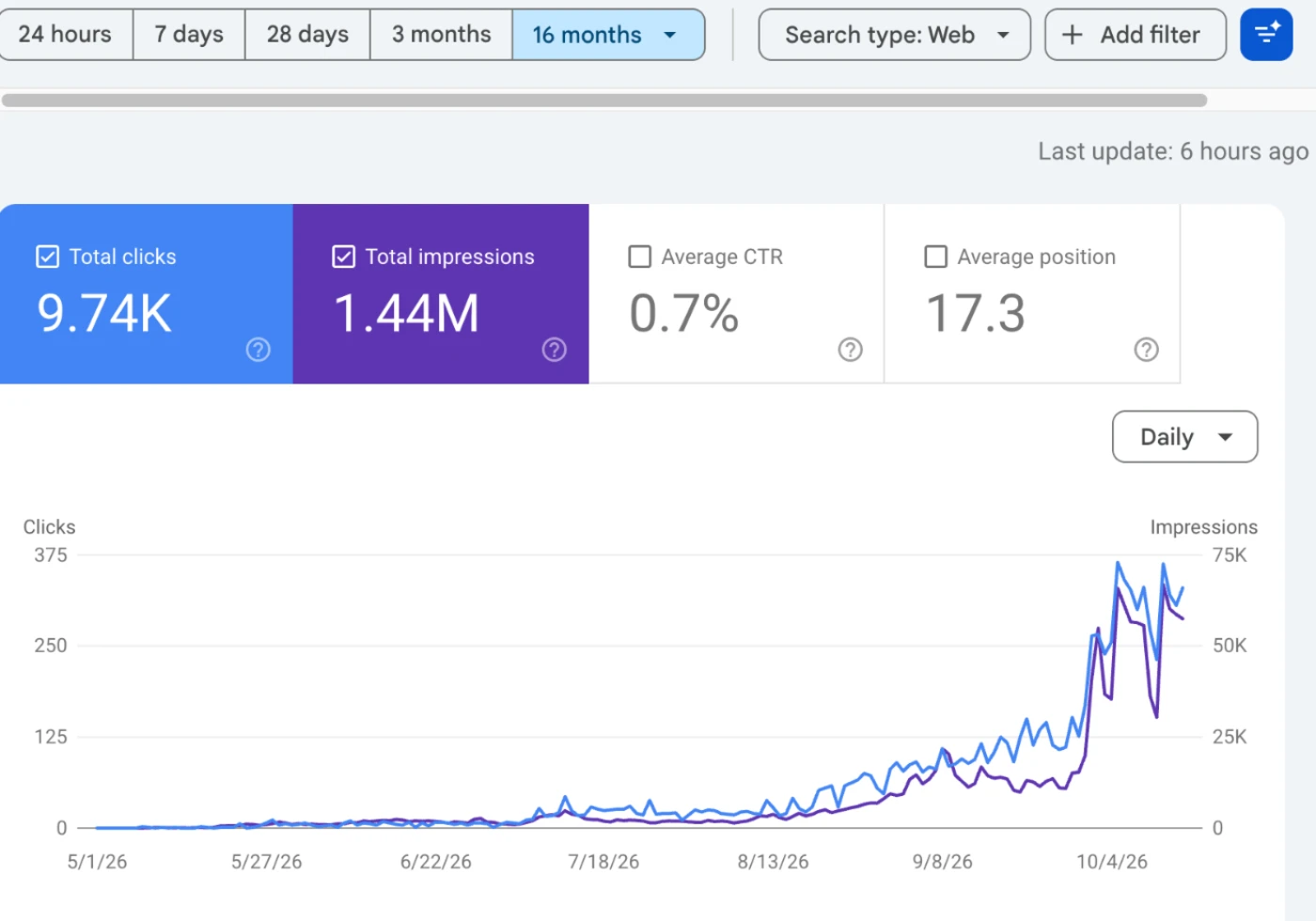
Google Search Console is a free tool from Google that shows how your site appears in search, and for a business owner four reports matter: Performance, Pages, Sitemaps and Links. Check them once a month for 20 minutes. They tell you what people searched to find you, whether Google can see your pages, and what to fix next. Everything else in the tool is for specialists.
I use Search Console on every site we build, and we set it up for clients on day one. We audit a lot of sites where it was never installed, so the owner has been guessing for years. It is the only place Google tells you directly what it sees.
Key points
- It is free. You only need to verify that you own the site.
- Performance shows the searches, pages, clicks and impressions. Data goes back 16 months.
- Pages shows which pages Google has indexed and why others are not.
- Sitemaps tells Google which pages exist so new ones are found faster.
- Links shows who links to you and how your own pages connect.
- Search Console is not the same as Google Analytics. One shows search before the click, the other shows behavior after.
Set It Up First
- Go to search.google.com/search-console and sign in with the Google account your business controls.
- Add your site. The Domain option covers every version of your address and needs a DNS record at your domain registrar. The URL prefix option is quicker and works with an HTML file or a tag.
- Verify ownership.
- Submit your sitemap (more below).
Give access to your marketer by adding them as a user. Do not share your password. Make sure the verified owner is an account you will always have.
Data takes a few days to show up. It does not go back before you add the site, so install it now.
Report 1. Performance
This is the report you will use most. It shows four numbers.
| Metric | Meaning |
|---|---|
| Clicks | Visits from Google search to your site |
| Impressions | Times your page appeared in results |
| CTR | Clicks divided by impressions |
| Average position | Where you ranked on average |
Use the filters. You can view by query, page, country, device and date. Search Console keeps 16 months of data, so you can compare year over year.
What To Look For
- Top queries. What are people typing to find you? Do any surprise you?
- Top pages. Which pages earn clicks? Are they your money pages?
- Queries with many impressions and low clicks. Your title or description may be weak, or you rank too low.
- Positions 8 to 20. These are close. A better page or a few links can push you to page one.
- Branded versus non branded. Searches for your name show people already know you. Non branded searches show new customers finding you.
- Trends. Clicks falling for three weeks in a row deserve a look.
Average position can mislead, because it averages every query and place. Use it as a direction, not a precise rank. Searches also vary by where the person stands, which matters for local queries.
What To Do
Pick three pages with high impressions and low CTR. Rewrite the title and description to match what people searched. Add a clear benefit and the city. Check again in a month.
Report 2. Pages (Indexing)
This report answers the question, "Is Google seeing my pages?" It splits your URLs into indexed and not indexed, with reasons.
Common reasons you will see:
- Crawled, currently not indexed. Google looked and decided not to include it, often because it is thin or duplicate.
- Discovered, currently not indexed. Google knows about it but has not crawled it yet.
- Duplicate without user selected canonical. Several pages look the same.
- Excluded by noindex tag. Someone told Google to skip it. Check this was on purpose.
- Not found (404). A page is gone or a link is broken.
- Page with redirect. Normal for old URLs.
What To Do
- Open the Not indexed list and sort by reason.
- Check whether any important pages are in it. Your service pages and city pages should be indexed.
- For important pages, improve the content and add internal links from other pages. See internal linking for small business websites.
- Use URL Inspection at the top to check one page. If you changed it, click Request indexing.
- Ignore harmless items such as old redirected pages or admin URLs.
Do not panic if the not indexed number is large. Many sites have junk URLs that should not be indexed. Care about the pages that make you money.
Report 3. Sitemaps
A sitemap is a file that lists the pages you want Google to know about. Most website platforms create one for you, often at /sitemap.xml.
In Search Console, open Sitemaps, type the sitemap address and click Submit. The status should read Success, and it shows how many URLs Google found.
What To Check
- The status says Success, not an error.
- The number of discovered pages is close to what you expect.
- The sitemap lists only real pages, with no redirects or noindex pages.
- It updates when you publish new content.
If you launch a new page and want it found quickly, a sitemap helps. It does not guarantee indexing, but it removes one barrier. Check the report after every redesign.
Report 4. Links
Links is a quick look at two things: who links to your site and how your own pages link to each other.
- External links. Top linked pages, top linking sites and top linking text.
- Internal links. Which pages have the most links from your own site.
How To Use It
- Find out who already links to you. Are they relevant, local sources?
- Spot your best linked pages. Those can pass attention to others if you link from them.
- Look at internal links. Your most important service pages should have many. If one has almost none, add links.
- Watch for odd or spammy linking sites. A few are normal. If you see a flood of strange foreign links, investigate before taking action. Google says it ignores most spam links on its own.
For ideas on getting good links, read link building for local businesses.
The Reports You Can Skip For Now
There is more in the tool, and some of it is worth a look when you are ready.
- Core Web Vitals and Page Experience. Useful if your site feels slow. Look at it quarterly.
- Mobile usability or enhancements. Shows schema and other markup issues. See schema markup for local businesses.
- Manual actions and security issues. You will get an email if something is wrong. Check once in a while that the page is empty.
- Removals. A tool for hiding URLs. You seldom need it.
Search Console Versus Google Analytics
People mix them up.
| Search Console | Analytics | |
|---|---|---|
| Shows | Search before the click | What visitors do after |
| Key data | Queries, impressions, position | Sessions, pages, conversions |
| Source | Google Search | Your site's tracking code |
| Best for | SEO health and keywords | Behavior and goals |
Use both. Search Console tells you how people find you, and Analytics tells you what they do after.
A Twenty Minute Monthly Checklist
- Open Performance and compare the last 28 days to the previous period.
- List the top ten queries and the top ten pages.
- Find three pages with high impressions and low clicks. Rewrite their titles.
- Open Pages and check for new problems on important URLs.
- Check Sitemaps for errors.
- Glance at Links for new sources.
- Write down what you changed so you can see the result next month.
Do Not Over Trust The Numbers
Search Console shows what Google reports, with some privacy filtering. Small queries may be hidden, and numbers will not match other tools exactly. Treat it as the best source on search traffic, not a perfect ledger. The goal is to find changes you can make, then watch the trend.
If you want help reading your own reports, I walk owners through this on a strategy call, and the guides cover the setup step by step.
Questions
Is Google Search Console free?
Yes. It costs nothing, and you only need to prove you own the site.
How often should I check it?
Once a month is enough for most business owners. Check sooner after a redesign, a move or a big change.
Why are my pages not indexed?
Common reasons are thin or duplicate content, a noindex tag, a new site and weak internal links. The Pages report lists the exact reason for each URL.
Does Search Console help local SEO?
It shows which local searches bring people to your site and which pages Google has indexed. It does not show your map pack position, so use it alongside your Google Business Profile insights.