 Anthony
 Get Your Google Review Link in 3 Clicks (and the Phone Fix)
You're standing at the counter and a happy customer says, "Sure, send me the link." Then you open your phone and can't find it. Your review link is three clicks away on a computer. Sign in to your Business Profile, select Read Reviews, then Get more reviews, then Copy. Do it once, save the link where your phone can paste it in two taps, and you never hunt for it again.
What You'll Learn
Know This Going In
- Google's official steps run on a computer. The review QR code can't be made on a phone at all.
- You must be signed in to the Google Account that manages the profile, or the button won't show.
- Every location has its own link. A link copied from the wrong profile sends reviews to the wrong store.
- You can also build the link from your Place ID, a code Google gives every place on Maps.
- Google says Place IDs can change over time. Recheck a hand built link once a year.
- Customers need a Google Account to post, but not a Gmail address.
The 3 Clicks on a Computer
Google spells out the steps on its own help page (Google Business Profile Help).
- Sign in to the Google Account that manages your business, then go to your Business Profile. Searching your business name on Google works, and so does business.google.com.
- Select Read Reviews, then Get more reviews.
- Select Copy. The review link is now on your clipboard.
The same box holds your QR code. Right click it and choose Save image as to keep a copy. Google says review QR codes can only be made in a computer browser, not on a mobile device. That's the reason so many owners think the feature is gone. They're looking on their phone.
Paste the link somewhere safe before you close the window. A shared note, a pinned message to your team, or an email to yourself with a subject like "Google review link." The point is that nobody has to repeat these steps on a busy Saturday.
Put the Link on Your Phone for Good
Your phone is where you'll actually send the link. So the goal is two taps from any text thread, not a trip through menus.
Google moved owner tools into the Maps app. Its edit steps say to open Google Maps, tap Business at the bottom right, then Edit profile (Google Business Profile Help). That's fine for hours and photos. For the review link, the computer copy is the one Google documents, so grab it there once and move it to your phone.
The fastest way on an iPhone is a text replacement. Apple's steps are short (Apple Support).
- Open Settings, then General, then Keyboard.
- Tap Text Replacement, then the plus icon to add one.
- Paste your review link as the phrase. Type a shortcut like "grev."
- Tap Save.
Now typing "grev" in any text turns into your full review link. Every person on your team can set the same shortcut in a minute. On Android, most keyboards have a similar shortcut or clipboard pin. Look in your keyboard's settings under dictionary or clipboard.
What to say with the link matters as much as the link. The texts, timing and rules are in the guide on how to get more Google reviews, so they aren't repeated here.
Build the Link From a Place ID
Sometimes the Get more reviews button isn't there. Maybe a past employee owns the profile login. Maybe an agency set it up and never gave you access. You can still build a working review link from the Place ID.
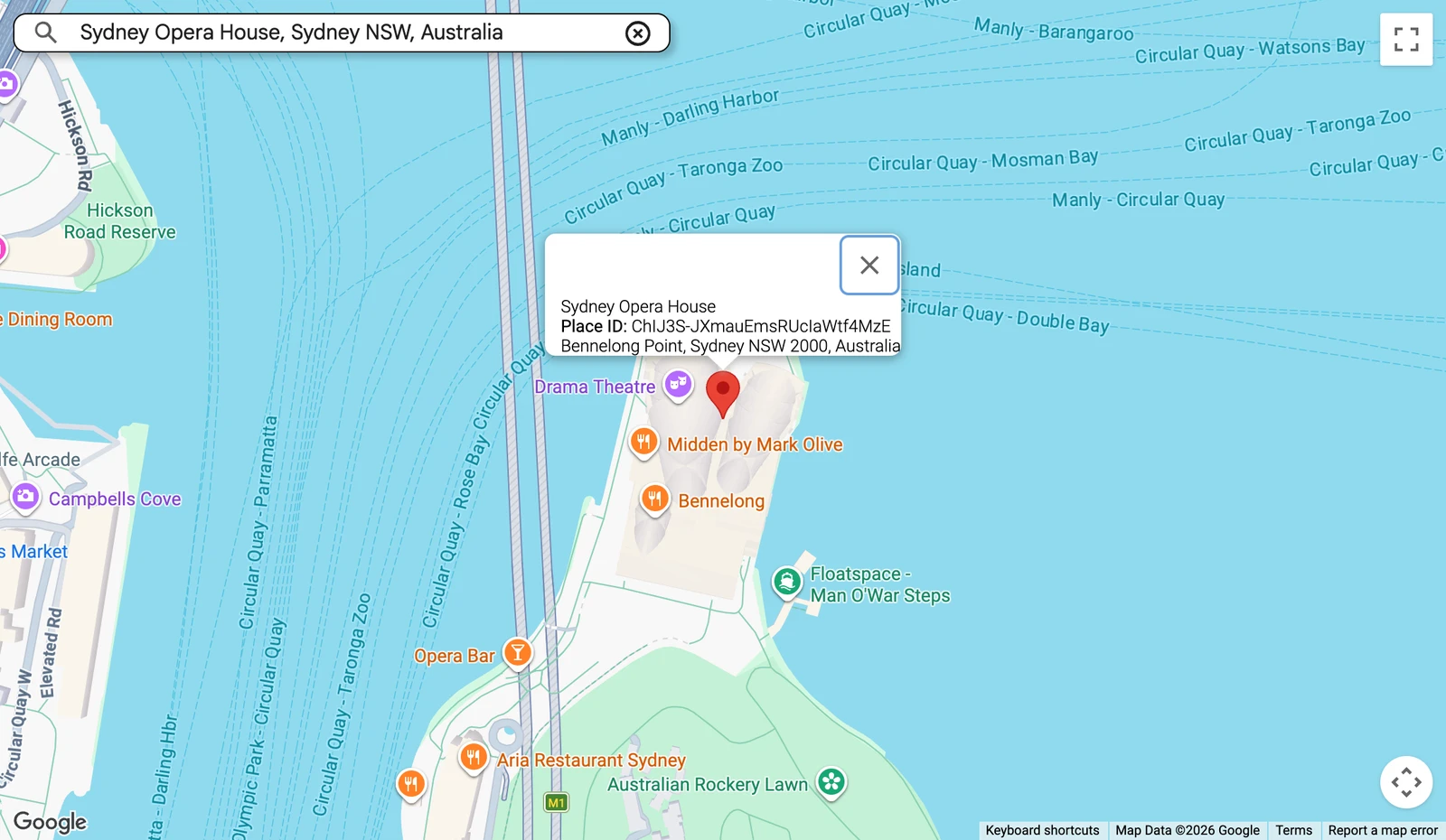
Google describes Place IDs as codes that uniquely identify a place on Google Maps (Google Maps Platform). Google's free Place ID Finder looks one up by name or address (Google Maps Platform).
- Open the Place ID Finder.
- Type your business name in the search box on the map. Pick your listing from the suggestions.
- A pin drops, and a small window shows your business name, Place ID and address.
- Copy the Place ID. It's a long string of letters and numbers.
- Paste it onto the end of this address, with no spaces.
https://search.google.com/local/writereview?placeid=
Open that link in a browser that isn't signed in and Google sends you to its sign-in page first. Once the customer signs in, the address carries them on to your review form. That sign-in step is normal, and it's the same for every review link.
Check the address in the window before you copy the ID. Two businesses in the same plaza can show up side by side in the suggestions. Pick the wrong one and you're building a review link for the shop next door.
Which Link to Send
There are four kinds of links floating around for the same business. They don't all do the same job.
| Link | Where it comes from | Where it lands | When it breaks |
|---|---|---|---|
| Get more reviews link | Your Business Profile on a computer | Your review box | You copied it from the wrong location |
| Place ID link | Place ID Finder plus the writereview address | Your review box, after sign in | Google gives the place a new Place ID |
| Google Maps share link | The Share button on your Maps listing | Your listing, not the review box | Rarely, but it adds steps for the customer |
| Generator tool link | A free third party website | Usually a Place ID link | When the tool picks the wrong listing |
Send the first one whenever you can get it. Use the Place ID link when you can't get into the profile. Skip the Maps share link for reviews. It opens your listing, and the customer then has to find the review button on their own. Every extra tap loses people.
Free link generator sites do work, but most of them do what the Place ID steps above do. You don't need a third party in the middle of your review link, and you don't want to rebuild every QR code if that site shuts down.
Test It Before a Customer Sees It
Never send a link you haven't opened yourself. It takes one minute.
- Open a private or incognito window on your phone.
- Paste the link and open it.
- Sign in with a personal Google Account, not the business one.
- Confirm the review box shows your business name and the right city.
- Close the window without posting.
Signing in with the business account to test it is a mistake. Owners and staff can't fairly review their own business, and Google's policy treats it as a conflict of interest (Google Maps Contributed Content Policy).
If a customer says they can't review because they don't have Gmail, tell them any email works. Google says customers can create a Google Account with an email address they already have (Google Business Profile Help).
When the Link Doesn't Work
Most broken review links trace back to one of five causes.
| What you see | Likely cause | Fix |
|---|---|---|
| No Get more reviews button | Signed in to the wrong Google Account | Switch to the account that manages the profile |
| The button is missing on every account | The profile isn't verified yet | Finish verification first |
| The link opens the wrong store | Copied from another location's profile | Copy it again from the right profile |
| The Place ID link shows an error | The Place ID changed | Look it up again in the Place ID Finder |
| A customer's review never appears | Google filtered the review | See the guide on missing reviews |
Google says you need to sign in to the account linked to the profile to edit it, and some businesses must verify before they can make changes (Google Business Profile Help).
The Place ID one catches people a year later. Google says Place IDs may change over time and recommends refreshing any Place ID that's more than 12 months old. It also says an old ID can come back as not found, for example when a business closes or moves (Google Maps Platform). If you move to a new address, rebuild the link and reprint every QR code made from it.
If the link works but the reviews don't show, that's a filter, not a link problem. The guide on why Google reviews aren't showing walks through it.
Turn the Link Into a QR Code
Use the QR code Google makes in the Get more reviews box. It comes straight from your profile, so it points where the link points.
Google suggests putting the link or QR code on receipts, in thank you emails, at the end of a chat, and printed in your store (Google Business Profile Help). Before you print 500 cards, scan the code with two different phones. A code that scans on your phone and fails on a customer's older one is a wasted print run.
Put the QR code where people stand still. A counter, a waiting room wall, a card left on the kitchen table after a service call. A code on a moving truck gets photographed by nobody.
Can You Get a Review Link Without a Business Profile?
Yes, for any place that already shows on Google Maps. The Place ID Finder works on every listed place, not only ones you manage. Search the business, copy the Place ID, and add it to the writereview address. What you can't do without the profile is make Google's QR code, reply to reviews, or fix the listing.
How Do You Get a Google Review Link for Another Business?
The same way, with the Place ID Finder. Agencies, franchise offices and helpful friends use this to build links for a business they don't manage. Test the link afterward to make sure the name and city match.
Does a Google Review Link Expire?
The link from Get more reviews stays tied to your profile, so keep using it until your profile changes. A Place ID link can stop working if Google changes the Place ID. Google suggests refreshing Place IDs older than 12 months. Open your saved link once a year, and again any time the business moves or changes its name.
Do You Need a Separate Link for Each Location?
Yes. Each location has its own profile and its own Place ID. Label each link with the city in your notes and in your phone shortcuts, like "grevhemet" and "grevperris." Mixing them up sends one store's happy customers to another store's page.
Your Checklist This Week
- Copy your review link from Read Reviews then Get more reviews on a computer
- Save the QR code from the same box with right click, Save image as
- Paste the link into a shared team note
- Set up a text replacement shortcut on every phone that closes jobs
- Test the link in a private window with a personal account
- Build a separate, labeled link for every location you run
- Put a yearly reminder on the calendar to open and test the link again
Want the whole profile set up right, from categories to the review system? The Google Business Profile Playbook covers it step by step, or work with Anthony and have it built for you.
Connected Guides
- How to get more Google reviews without paying for one
- Why Google reviews aren't showing up
- How many Google reviews a local business needs
- How to respond to negative reviews
Official Sources
- Google Business Profile Help, create a Google link or QR code to request reviews
- Google Business Profile Help, edit your Business Profile
- Google Business Profile Help, tips to get more reviews
- Google Maps Platform, Place IDs
- Google Maps Platform, Place ID Finder
- Google Maps user contributed content policy, prohibited and restricted content
- Apple Support, use Auto-Correction, predictive text and text replacement on iPhone
Want my new posts near the top when you search? Pick Anthony Limpert as a preferred source on Google and Google shows them to you more often in Top Stories.