 Anthony
 How to Get More Google Reviews Without Paying for One
You just finished a job the customer loved. They thanked you twice at the counter. Then they drove off, and the review never came. You don't have a review problem. You have an asking problem. Ask every customer, the day the job ends, with a link that opens Google's review box in one tap. Do it daily, ask everybody the same way, and never attach a reward.
What You'll Learn
Know This Going In
- Google gives you a free review link and QR code. You make it on a computer, not a phone.
- Ask while the customer is still happy. That means at pickup, at payment, or the same day.
- Ask every customer, not only the happy ones. Google's policy bans picking who gets the ask.
- No discounts, gifts or contest entries for reviews. Google bans all of them, even where the FTC doesn't.
- A steady few reviews a week beats a blast of 50 in a day. Google's spam system watches for bursts.
- Google says more reviews and good ratings can help your local ranking (Google Business Profile Help).
Make Your Google Review Link and QR Code
Everything starts with the link. A customer who has to search for your business, find the reviews tab and hunt for the write button will quit halfway. The link skips all of that.
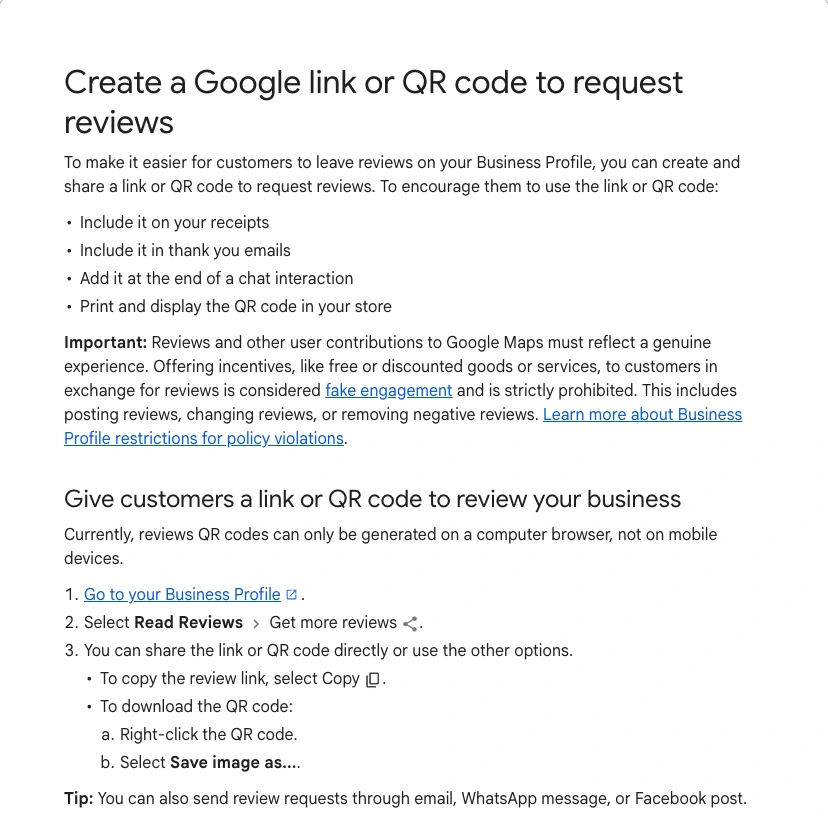
Google's steps are short (Google Business Profile Help).
- Sign in to your Business Profile on a computer.
- Select Read Reviews, then Get more reviews.
- Select the copy icon to copy the link.
- To save the QR code, right click it and choose Save image as.
Google says the QR code can only be made in a computer browser right now, not on a phone. So do this once at a desk, then save both the link and the QR image where your whole team can find them.
Test the link before you send it to anyone. Open it on your phone in a private window. It should open your profile with the review box ready. If it opens the wrong location, you copied it from the wrong profile.
Ask at the Moment the Job Ends
Timing does more than wording. The best moment is when the customer has the result in hand and the bill is paid. For a mechanic that's pickup. For a plumber it's the minute the water's back on. For a dentist it's checkout.
Recency matters to shoppers, too. BrightLocal's 2026 survey of 1,002 US adults found 74% look for reviews from the last three months, and 32% look for reviews from the last two weeks (BrightLocal). A business with 300 reviews and nothing new since spring looks closed.
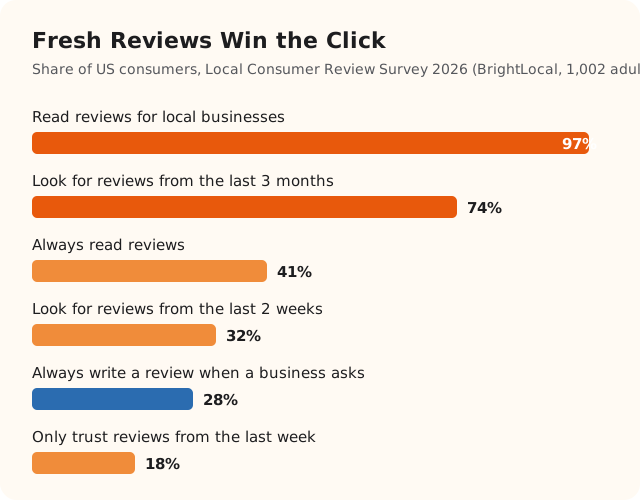
The same survey says 28% of consumers always write a review when a business asks, up from 16% the year before. That's the number to keep in your head. Asking works. It just doesn't work on everybody, so you need to ask everybody.
Use two touches, no more.
- Say it in person. One line at the counter or the driveway.
- Send the link the same day. A text within a few hours, while they still remember your name.
If they don't leave one after that, let it go. A third and fourth reminder turns a happy customer into an annoyed one.
The Words to Use, by Channel
Keep the ask short, personal and easy to ignore. That last part sounds odd, but pressure is what makes people put it off. Each script below asks for a review without asking for a good one.
In person, at pickup or payment
Thanks for trusting us with this. If you've got a minute later, a Google review really helps a small shop like ours. I'll text you the link.
The text, same day
Hi Dana, it's Mike from Valley Auto. Thanks again for coming in today. If you have a minute, would you leave us a Google review? [link] No worries if not.
The email, for businesses that don't text
Put her name in the subject line, like "Thanks for choosing us, Dana."
Thanks for having us out today. If you have two minutes, a Google review helps other people in town find us. It opens right to the review box. [link]
The printed card or receipt line
Tell your neighbors how we did. Scan to review us on Google.
Notice what's missing from all four. No "if you loved us." No "five stars would mean the world." No "leave a positive review." Those lines steer the rating, and Google's policy bans attempts to influence what a review says (Google Maps Contributed Content Policy).
Use the customer's first name and the real person's name. A text from "Mike" gets read. A text from "The Management" gets deleted. If you need a texting setup that sends this after every job, the guide on missed call text back covers the tools most small shops already have.
Where to Put the Ask
Google itself lists the places it expects you to use the link and QR code. It names receipts, thank you emails, the end of a chat, and a QR code printed in your store. It also mentions email, WhatsApp and Facebook posts (Google Business Profile Help).
| Place | When it fires | Best for |
|---|---|---|
| Text with the link | Same day, after payment | Mechanics, plumbers, HVAC, any field service |
| Paper or email receipt | At payment | Shops, salons, restaurants |
| Thank you email | Within a day | Lawyers, accountants, longer projects |
| End of a chat or DM | When the question is solved | Businesses that sell online or by message |
| QR code on the counter | While they wait | Walk in businesses with a front desk |
| QR card left on site | After the tech leaves | In home services, cleaners, pest control |
Pick two at most. One in person, one by message. A business that does six of these halfway gets fewer reviews than one that does two every single time.
Add Your Services So Reviews Name the Job
Few owners know this step exists. For some service businesses, Google asks reviewers which jobs the business did, and that task goes into the review. Google pulls that task list from your service list, your website, or a standard list for your type of business (Google Business Profile Help).
So if your service list says "brake repair," "water heater install" or "teeth whitening," customers can tag that job. If a job is missing, Google says you can add it to your service list in your Business Profile.
The same page explains that some service businesses get ratings on parts of the experience, like price. Each one is scored as positive or critical feedback. You can't pick which parts customers are asked about. You can read them, though, and call the customer who marked one down.
Fill in your services before you start a review push. Every review after that can carry the name of the work you want to be found for.
The Rules That Quietly Cost You Reviews
Most review advice online comes from companies that sell review software. A lot of it breaks Google's rules. Their own blogs recommend sending a survey first and only routing the 9s and 10s to Google. They suggest "ethical" incentives. They tell owners to make reviews a staff target.
Google's policy bans all three. It says a business may not "selectively solicit positive reviews," may not offer payment, discounts or free goods for a review, and may not ask staff to get a certain number of reviews (Google Maps Contributed Content Policy).
The confusion comes from the FTC. Its rule on reviews, which took effect on October 21, 2024, allows an incentive offered to every customer as long as it doesn't require a certain sentiment (FTC). Legal under federal law is not the same as allowed on Google. Google's rules are stricter, and Google is the one that removes the reviews.
| Practice | FTC rule | |
|---|---|---|
| Ask every customer the same way | Allowed | Allowed |
| Discount or gift for any review | Banned | Allowed if no sentiment is required |
| Reward only for 5 star reviews | Banned | Banned |
| Survey first, send only happy customers to Google | Banned | No specific ban, may still break the FTC Act |
| Staff review quotas | Banned | Not addressed |
| Pressure to review while on site | Banned | Not addressed |
| Family or staff reviewing the business | Removed as a conflict of interest | Allowed only with clear disclosure |
The on site line trips up a lot of counters. Google's policy says a business can't require or pressure people to leave reviews while on the premises. A QR code on the counter is fine. Handing a customer a tablet and waiting while they type is not.
When a review breaks these rules, Google can remove it.
Keep a Steady Pace, Not a Blast
The worst week for reviews is the week an owner reads an article like this one and texts 400 old customers at once.
Google's systems keep watching after a review posts. One pattern they look for is an unusually high number of 1 or 5 star reviews on a place over a short period (The Keyword, Google). In April 2026, Google added a harder step. When it detects a sudden spike of spam reviews on a profile, it removes the fake ones, pauses new reviews for a while, and shows shoppers a banner saying reviews are paused (The Keyword, Google). In that same update, Google said it blocked or removed over 292 million policy breaking reviews in 2025.
Real customers in a sudden pile can look fake to a filter. A shop that finishes eight jobs a day and asks all eight builds a pattern that looks like what it is, a busy real business.
If you want to reach past customers, spread it out. Text ten a day from your newest jobs back, not your whole list in one afternoon.
Reply to Every Review You Get
Replies are part of getting more reviews. Google's own tips page lists replying as a way to show customers their feedback matters (Google Business Profile Help). The next customer reads your replies before deciding whether to bother writing one.
Keep it short and different each time. Use the reviewer's name, mention the job, and sign it. Google asks owners not to use replies to push deals. For the hard ones, the guide to responding to negative reviews has replies that calm things down instead of starting a fight.
Do Google Reviews Help You Rank on Google Maps?
Yes, as one piece of the picture. Google says local results are mainly based on relevance, distance and prominence, and that prominence includes how many reviews you have. It also says more reviews and positive ratings can help your local ranking (Google Business Profile Help).
Reviews won't move you onto a map 15 miles away. Distance still rules. They help you beat the shops near you. To set a real target, count the reviews of the top three businesses in your area. The guide on how many Google reviews a business needs shows how.
Does a Customer Need a Gmail Account to Leave a Review?
They need a Google Account, but not a Gmail address. Google says customers can create a Google Account with any email they already have (Google Business Profile Help). If a customer says "I don't have Gmail," tell them that. It saves a lot of lost reviews from older customers.
How Long Until a New Review Shows Up?
Most clean reviews post within seconds (The Keyword, Google). Your star average is slower. Google says the score can take up to two weeks to update after a new review posts (Google Business Profile Help). So don't panic when the count moves and the rating doesn't.
Is It OK to Ask a Customer Twice?
Once in person and once by text is fair. That's two touches about one visit. Past that, you're nagging. If a customer comes back next month for a new job, that's a new visit, and you can ask again. Never ask someone to post the same review twice, though. Google counts repeated content as a policy break.
Your Checklist This Week
- Make your review link and QR code on a computer, then test the link in a private window on your phone
- Save the link where every person who closes a job can grab it
- Write one in person line and one text, with no "five stars" or "if you loved us"
- Send the text the same day the job ends, to every customer
- Add your real services to your Business Profile service list
- Take any discount, raffle or gift out of your review ask
- Drop any survey step that sends only happy customers to Google
- Remove staff review quotas and any tablet you hand to customers
- Reply to every review this week, by name, each one different
Want the whole profile set up, from categories to the review system? The Google Business Profile Playbook covers it step by step, or work with Anthony and have it built for you.
Connected Guides
- How many Google reviews a local business needs
- How mechanics can get more Google reviews
- How to respond to negative reviews
- How to remove bad Google reviews
Official Sources
- Google Business Profile Help, create a Google link or QR code to request reviews
- Google Business Profile Help, tips to get more reviews
- Google Business Profile Help, about reviews for service businesses
- Google Business Profile Help, understand review scores for local places
- Google Business Profile Help, how to improve your local ranking on Google
- Google Maps user contributed content policy, prohibited and restricted content
- The Keyword, Google, how local reviews on Google Maps work
- The Keyword, Google, new ways we're protecting businesses on Maps
- FTC, Consumer Reviews and Testimonials Rule questions and answers
- BrightLocal, Local Consumer Review Survey 2026
Want my new posts near the top when you search? Pick Anthony Limpert as a preferred source on Google and Google shows them to you more often in Top Stories.